
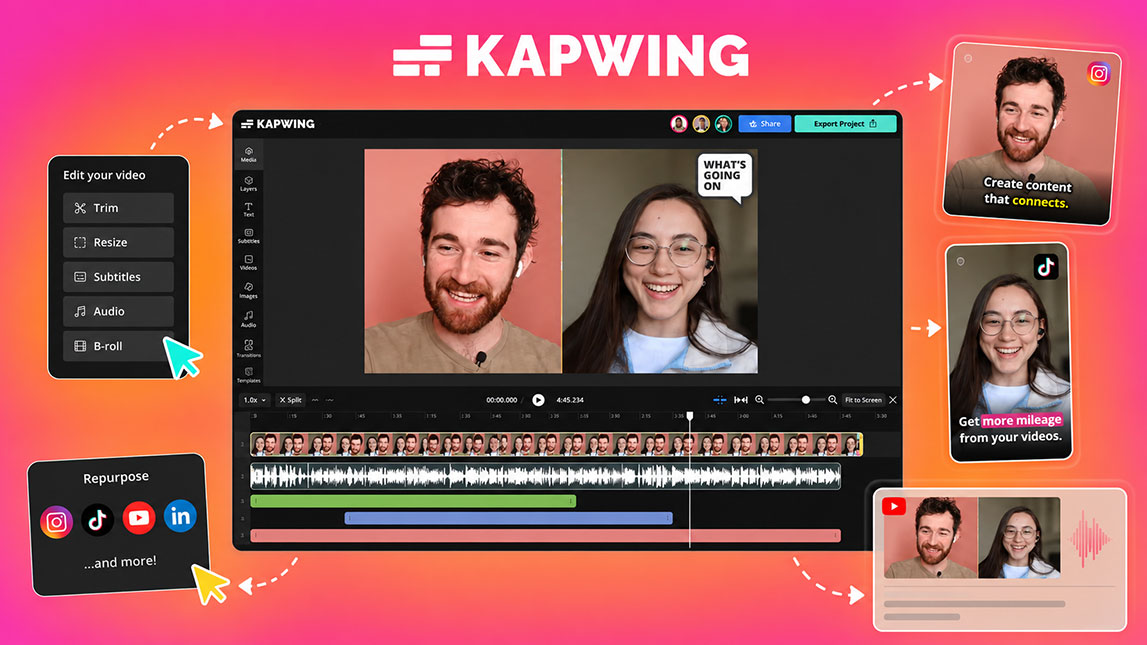
I usually notice the repurposing problem right after finishing a good video. The recording is useful, the ideas are clear, but turning it into clips, captions, quote visuals, and social formats can quickly become a second project.
That is where Kapwing fits nicely. For creators, marketers, and small teams who want more mileage from each recording, it offers a practical way to turn one video into multiple visual assets without rebuilding everything from scratch.
Unlocking efficiency with Kapwing AI content repurposing
Kapwing works best when you treat it less like a simple editor and more like a small repurposing station. You bring in one video, maybe a webinar clip, product demo, podcast recording, or tutorial, then use its AI features to create formats that can move across your content calendar.
That is the value of kapwing ai content repurposing: it turns existing footage into reusable visual assets without forcing you to start from zero. For creators already thinking about turning one idea into multiple visuals, this kind of tool removes a lot of manual friction.
Core Kapwing features for transforming videos into visuals
Automatic clipping is the first feature I would look at. Instead of scrubbing through a long video hunting for the “good bit,” Kapwing can help surface shorter moments that are easier to shape into Reels, Shorts, TikToks, or promo snippets.
Captions are just as useful. They make clips easier to follow when people scroll with the sound off, which is often where social content actually gets consumed.
Kapwing also helps with resizing, templates, and visual consistency:
A clip that works on YouTube can feel awkward on Instagram Stories if the framing is off, so this part matters more than it seems.
Here is where the tool fits into a practical visual content editor workflow:
| Feature | Useful for | Output |
|---|---|---|
| AI clips | Finding highlights | Short videos |
| Subtitles | Silent viewing | Captioned clips |
| Resize | Platform fit | Social formats |
| Templates | Brand consistency | Visual posts |
For a broader system behind this process, faster AI design workflows gives useful context without making Kapwing carry the whole strategy alone.
A practical workflow: repurposing your video content with Kapwing
Start with one strong source video
I would not upload every random recording and expect magic. Pick a video with clear sections, useful ideas, or moments where the speaker explains something sharply. Product walkthroughs, founder updates, interviews, and tutorials usually work well.
Once the file is inside Kapwing, review the transcript or timeline. This gives you a fast sense of what can become a short clip, quote-style visual, or teaser for a longer piece.
Turn the best moments into clips
Use the video to clips AI workflow to find strong segments, then trim them manually. AI can spot interesting parts, but you still know your audience, offer, and best hooks better than the tool does.
A simple process works well:
- Upload the original video and let Kapwing process it.
- Review suggested clips or scan the transcript for strong moments.
- Trim each clip so the opening is clear and direct.
- Add captions, clean up pauses, and adjust the framing.
- Export versions for the platforms you actually use.
Not every clip needs to feel highly produced. Sometimes a clean 12-second explanation with readable captions is enough.
Build visual assets from the same idea
After the clips are done, look for sentences that can become static visuals. A strong quote, short framework, or before-and-after point can become a carousel slide, thumbnail, GIF, or simple branded post.
This is where Kapwing feels more like a social media content tool than a standard editor. You are not just cutting video. You are pulling usable visual material from work you already created.
Adapting visuals for diverse social media platforms using Kapwing
Each platform has its own visual habits. TikTok and YouTube Shorts usually need vertical framing and quick context. Instagram Reels benefits from strong captions and clean branding. Facebook can handle slightly slower pacing, especially for educational or community-driven content.
Kapwing helps because you can resize, reposition text, and keep logos or brand colors consistent without rebuilding the asset from scratch. I would still check every export manually, especially when faces, captions, or product screens sit near the edge.
The advantages of integrating Kapwing into your content strategy
A fair Kapwing review should not pretend the tool replaces strategy. It does not decide your message, positioning, or best content angles.
What it does well is speed up production once you already have something worth repurposing. For freelancers, marketers, indie makers, and SaaS teams, that means more output from fewer recording sessions, better visual consistency, and less time lost inside scattered editing tools.
Used with intention, ai video repurposing becomes less about “posting more” and more about making each original idea travel further.
Kapwing is most useful when it supports a clear content habit: record once, extract the strongest moments, then adapt them with enough care that each platform gets a proper version. Automation saves time, but the final polish still comes from knowing what your audience will actually stop for.
For a small team or solo creator, that can make video repurposing feel lighter and more repeatable. Not effortless, exactly, but much less like starting over every time.

Artificial Intelligence Specialist | AI-Driven Workflow Strategist